Indietool
How to Check Website Indexed by Google Fast
You launch a new site, publish the homepage, maybe add a few product or blog pages, and then open Google to search for it. Nothing appears. That moment is where most founders start asking the same question: how do I check whether my website is indexed by Google, and what result should I trust?
The confusing part is that a page can be live and still not appear in Google search. “Live” only means your server is serving the page. Indexed means Google has stored that page in its search index. Crawled means Googlebot visited it. Ranked means Google decided where, or whether, to show it for searches. Those are different stages, and beginner guides often blur them together.
If you check too loosely, you can misread the situation. If you check too late, you can waste time promoting pages Google still hasn't indexed. That's why early verification matters. It tells you whether you have a discovery problem, an indexing problem, or just a waiting problem.
Table of Contents
- Why Checking Google Indexing Matters Before You Promote
- Quick Check With Google Site Search and What It Really Tells You
- Verify Any Single URL With Google Search Console URL Inspection
- Check Your Whole Site With the Page Indexing Report
- Use Bulk and Third Party Tools to Check Indexing at Scale
- What to Do When Your Pages Are Not Indexed
Why Checking Google Indexing Matters Before You Promote
You launch on Friday, share the site over the weekend, and start telling people to Google your brand on Monday. They visit your pages just fine, but search results still look empty or incomplete. That does not always mean the site has a serious problem. It often means you are checking with the wrong tool for the question you are asking.
That distinction matters before you spend time on outreach, ads, or launch posts. Promotion sends people to a site. Indexing determines whether Google can store and return those pages in search. If Google has not indexed your key pages yet, brand searches may miss your homepage, product pages, or docs. That weakens one of the simplest discovery paths, which is one reason brand visibility matters early.
A good way to frame it is this: site: search is like peeking through a window, while Search Console is like checking the building's actual records. The window can give you a quick clue. The records tell you what Google has really done with a page or with the site as a whole.
That is why indexing checks belong near the start of your launch checklist, alongside crawl access, canonicals, and sitemap setup. If you want a clearer foundation for that side of the work, this guide on how technical SEO drives rankings is useful because indexing problems often start with setup choices, not with the page copy itself.
What each check actually answers
Founders often run into conflicting signals here. A page may not appear in a site: search, yet URL Inspection says it is indexed. Or a few pages may appear in Google, while the site still has widespread exclusion issues in Search Console. Those are not contradictions once you know what each check is designed to answer.
| Method | Best for | What it proves |
|---|---|---|
Google site: search |
Quick hint | Google can show some results for a domain, subdomain, or URL. It does not give a complete or precise indexing count. |
| URL Inspection | One specific page | Whether Google has indexed that exact URL, what canonical Google selected, and whether there are page-level issues affecting indexing. |
| Page Indexing report | Whole site | How Google is processing your URLs at scale, including indexed pages, excluded pages, and the reasons behind those states. |
Use a simple rule. If you are asking, “Is this exact page indexed right now?”, trust URL Inspection. If you are asking, “How healthy is indexing across my site?”, trust the Page Indexing report.
That perspective saves time. It helps you avoid promoting pages that are still waiting to be indexed, and it keeps a rough site: search from overruling the more reliable signals inside Search Console.
Quick Check With Google Site Search and What It Really Tells You
The fastest way to look for signs of indexing is a Google site: search. It's useful because it takes seconds and doesn't require logging into anything.
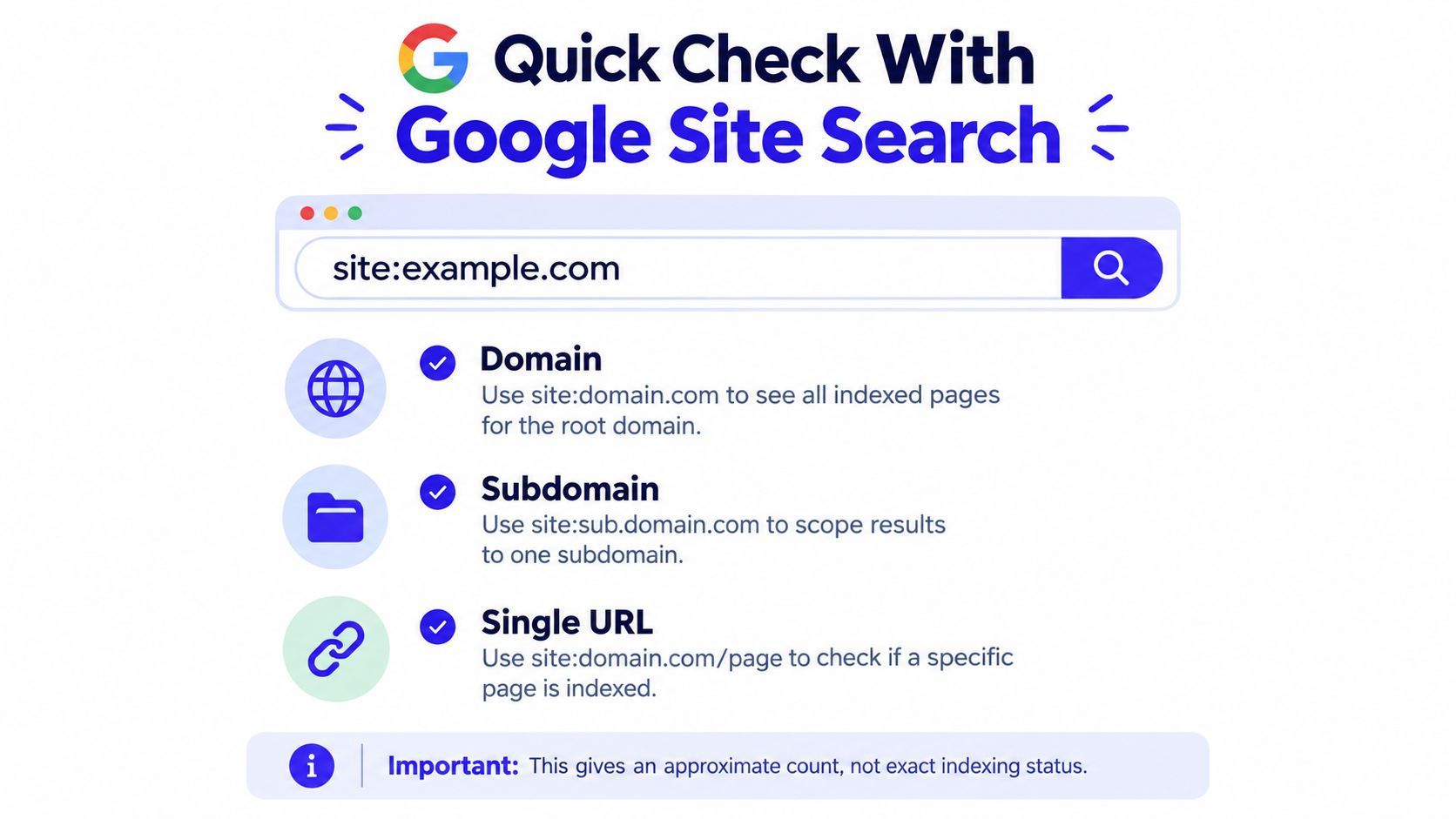
Copy these exact search formats
Use one of these depending on what you want to check:
Entire domain
site:example.comOne subdomain
site:blog.example.comOne page
site:example.com/pricing
If you just launched a five-page site, the first search can give you a rough feel for whether Google has found anything at all. If you want to check one important page, the third format is the quickest manual test.
What site search is good for
For a small site, site: is a decent first glance. If you search site:yourdomain.com and Google returns a homepage, about page, and a couple of posts, that's a sign your site is at least partly present in the index.
It's also handy when you want a rough view of how Google is grouping pages. You may notice old URLs, parameter versions, or pages from a subdomain you forgot existed.
A
site:search is a hint, not a verdict.
Where founders get misled
This is the part most guides skip. Google support discussions warn that site: results are not because Google intentionally returns only some matches, filters duplicates, ignores query strings, and can include subdomains or partial path matches. For accurate counts of indexed pages, Google points people to the Page Indexing report in Search Console, as explained in Google's guidance on using site: for indexing checks.
That means a missing result in site: search does not automatically prove a page isn't indexed.
Here's a practical example:
- You search
site:example.com/features - Google shows nothing
- You assume the page isn't indexed
- But URL Inspection later shows it is indexed
That's not a contradiction. It just means site: wasn't showing you that result.
A safer way to interpret site: results
Use this rule set:
- If
site:shows the page, that's a useful positive signal. - If
site:doesn't show the page, don't treat that as final. - If your site is larger, skip counting with
site:and go straight to Search Console. - If results look odd, check the exact URL in URL Inspection.
Verify Any Single URL With Google Search Console URL Inspection
If you need a real answer for one page, use Google Search Console URL Inspection. This is the check I'd use for a homepage, pricing page, product page, or any URL you care about enough to share or promote.
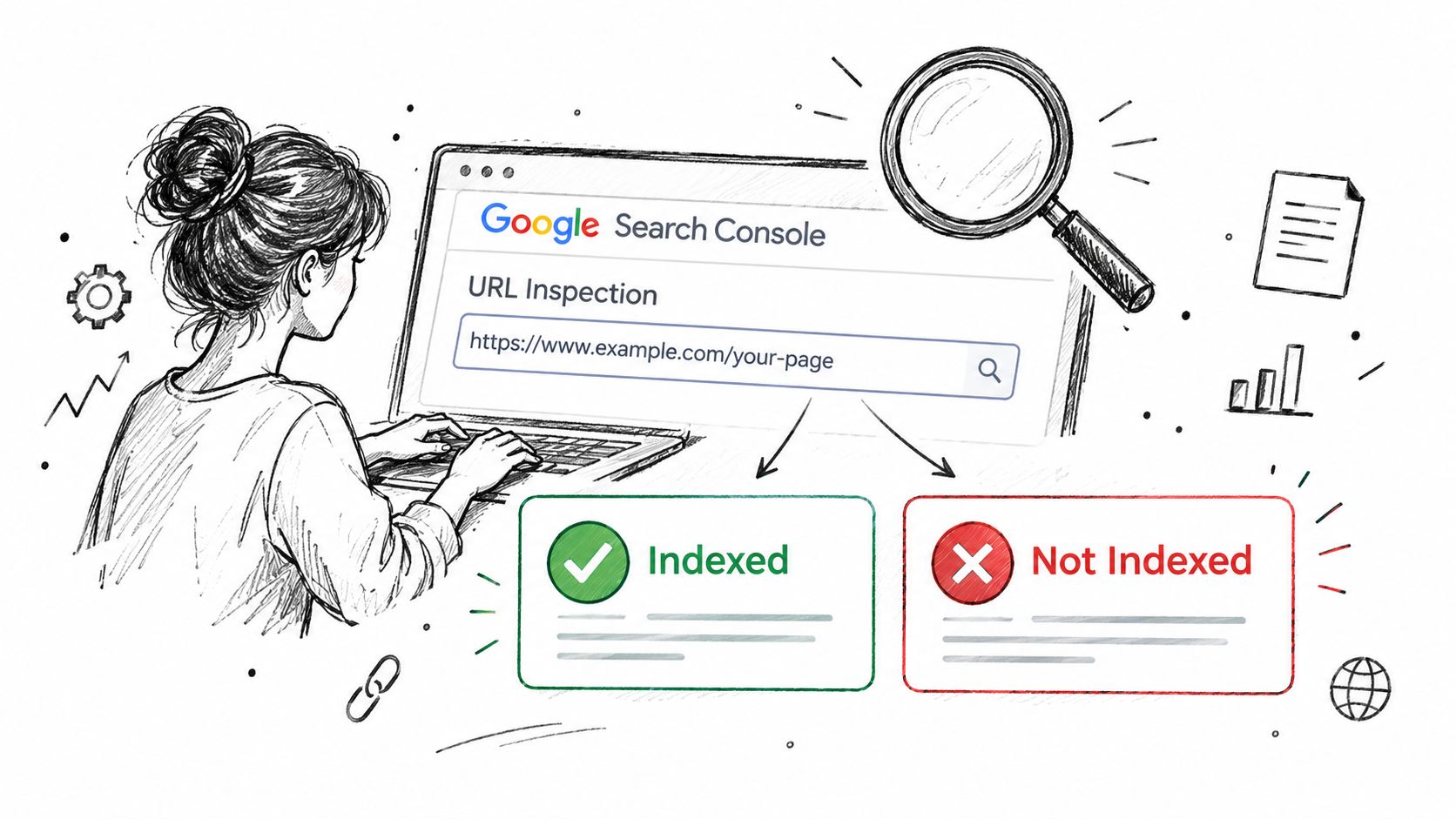
Google's documentation says the most reliable step-by-step way to verify whether a specific URL is indexed is to inspect the full URL in Search Console, view its current status, and request indexing if needed. Google also notes that after you request indexing, processing can take up to a week or two, and the tool shows details such as the Google-selected canonical, last crawl data, rendered HTML, and indexing errors in Google's URL Inspection documentation.
How to run the check
Open Search Console, choose the correct property, and paste the full URL into the top inspection bar.
Use the complete version of the page you want checked:
https://example.com/https://example.com/pricinghttps://www.example.com/blog/post-name
Don't inspect a shortened form if your live page uses a different one. URL Inspection is literal. If your site resolves https://www.example.com/pricing but you inspect http://example.com/pricing, you may end up checking the wrong address.
How to read the result
You'll usually land in one of two broad states:
URL is on Google
Google has indexed that URL or a canonical version of it.URL is not on Google
Google hasn't indexed it, or another issue is blocking it.
The details below that headline matter just as much as the headline itself.
Look closely at these fields:
Google-selected canonical
This tells you which version Google chose as the main version. If it picked a different URL than you expected, your page may not be the one Google wants to index.Last crawl
This gives you context. If Google hasn't crawled the page recently, you may be waiting.Rendered HTML
This helps when a page depends heavily on scripts and you want to see what Google processed.Indexing errors or warnings
These often point directly to the issue, such as a canonical mismatch or other signals affecting inclusion.
If you're just starting with SEO, this beginner-friendly guide on how to start SEO helps put Search Console checks into the bigger workflow.
When to request indexing
If the page is important, live, and ready for search traffic, click Request Indexing.
That request isn't a guarantee. It's a prompt for Google to reconsider the page. If the page has weak internal links, conflicting canonicals, or quality issues, a request alone won't fix the root problem.
A short walkthrough can help if the interface is new to you:
When live status and indexed status don't match
This is a common point of confusion. Sometimes the live test looks fine, but the indexed version is older or missing. That usually means Google can fetch the page now, but hasn't fully updated what it stores.
If the live test passes but the page still isn't indexed, don't assume the problem is over. It often means Google can access the page, not that Google has accepted it into the index yet.
In that situation, check the canonical choice, confirm the page is linked internally, and give Google time after your request.
Check Your Whole Site With the Page Indexing Report
You publish 30 new pages, run a site: search, and only a handful show up. That can feel alarming. Before you assume Google ignored the rest, open the Page Indexing report in Search Console. It is the better tool for answering a different question: how Google classifies your site at the URL-group level, not just what happens to appear in public search results.
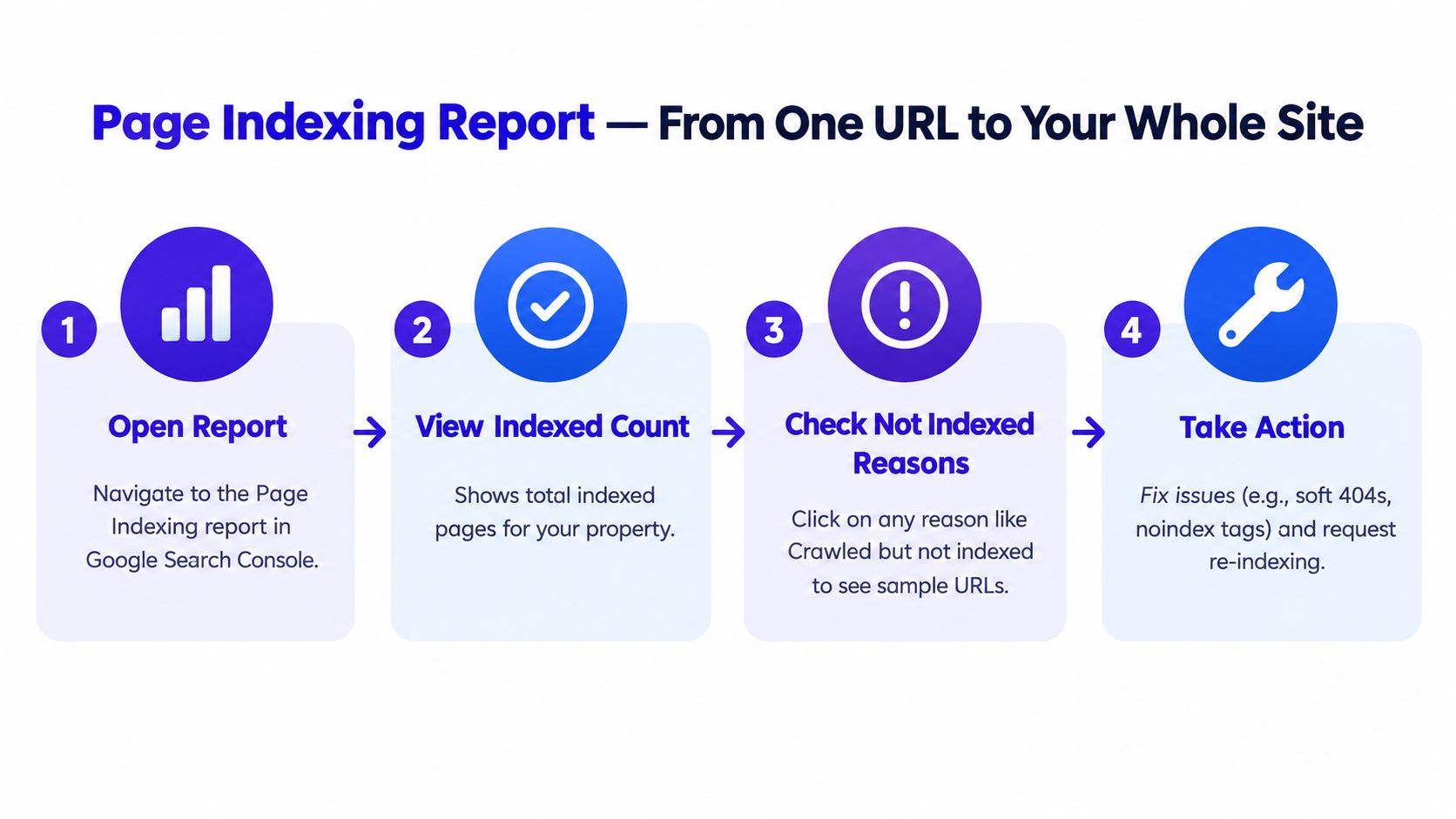
If URL Inspection is a flashlight for one page, the Page Indexing report is the floor plan. It helps you see patterns across the whole property.
That difference matters because founders often compare signals that answer different questions. A site: search is a quick hint. URL Inspection is the best check for one specific page. The Page Indexing report is the place to trust when you need the broader picture, especially if you publish many pages or use repeated templates.
What to check first
Start with the two main buckets:
| Area | What it helps you confirm |
|---|---|
| Indexed | Which URLs Google has included in its index |
| Not indexed | Which URLs were excluded, delayed, or treated differently, plus the reason category |
Do not stop at the total indexed count. A single number can hide the underlying issue.
The useful part is the reason category behind excluded URLs. That tells you whether Google is seeing something normal, like alternate versions or low-priority utility pages, or something that affects pages you want to rank.
How to read it without getting lost
A good first pass is to review by section of the site.
If you run a SaaS company, look at your docs, blog, feature pages, and pricing-related URLs separately. If you run an ecommerce store, check categories, product pages, filters, and out-of-stock pages as separate groups. That makes patterns easier to spot.
Use this order:
- Check whether your important sections are represented. Your core pages should appear in the indexed set more consistently than thin or duplicate pages.
- Open a reason category and inspect the sample URLs. Ask what those pages have in common. Same template, same canonical setup, same crawl path, or same internal linking weakness.
- Sort problems by business value. A missing checkout-related page matters more than an excluded tag archive.
One warning here. Some exclusions are healthy. If Google leaves out parameter URLs, duplicate variants, or pages you never meant to rank, the report may be showing your setup is working as intended.
When to trust this report over other checks
This is the part many guides skip.
If site: search suggests a page is missing, but the Page Indexing report shows the relevant URL pattern is broadly indexed, trust Search Console first for site-level judgment. Public search results are incomplete and can lag or vary. On the other hand, if URL Inspection says one page is indexed but the Page Indexing report shows a large section falling into exclusion categories, trust the pattern you see in the report and investigate the template or internal linking issue affecting that group.
In short, use each tool for the question it can answer:
site:search for a quick public hint- URL Inspection for one exact URL
- Page Indexing report for patterns across the whole site
What founders usually find here
The report often surfaces clusters, not isolated mistakes. You may notice new articles are not getting indexed while older ones are fine. Or product pages are indexed, but filtered collection pages pile up in excluded categories. Those patterns point you toward the cause faster than checking URLs one by one.
If repeated exclusions affect revenue pages or major content sections, a structured comprehensive technical SEO review can help you trace the problem through canonicals, templates, crawl paths, and internal links.
Check it again after major changes
Use the Page Indexing report after you:
- publish a large batch of pages
- change templates
- migrate URLs
- update canonical rules
- revise navigation or internal links
That habit helps you catch site-wide indexing problems early, before they affect an entire section.
Use Bulk and Third Party Tools to Check Indexing at Scale
You launch 300 new pages, check a few by hand, and get mixed signals. One page appears in search. Another does not. A third shows as indexed in Search Console. At that point, the problem is no longer “is this one URL indexed?” The question is “what pattern is showing up across this batch?”
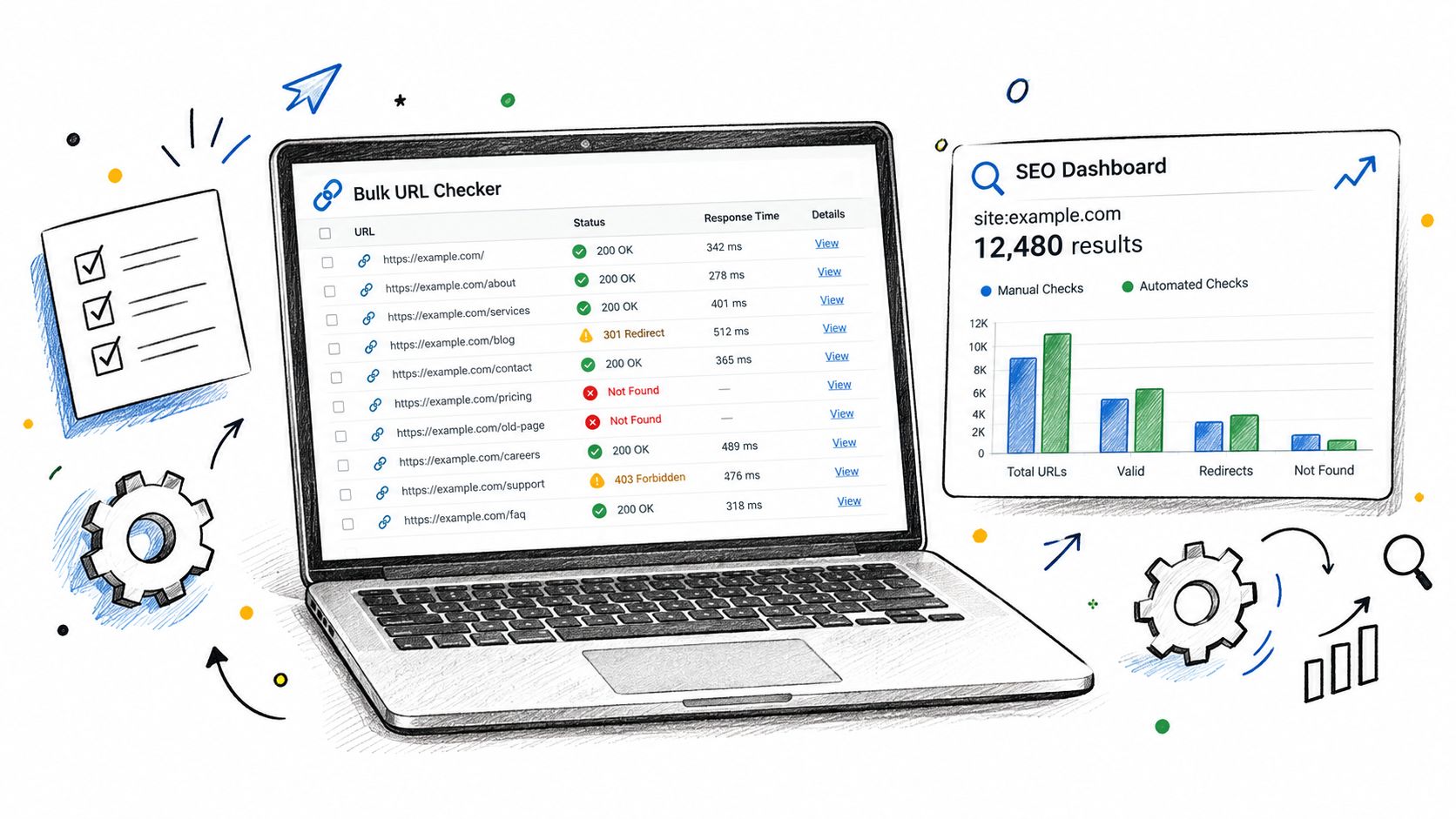
Bulk tools help with that pattern-finding job. They are most useful for sorting large lists, grouping similar outcomes, and helping you decide which URLs deserve a closer check in Search Console.
Not all bulk checkers answer the same question
Some bulk tools run site:-style checks across many URLs. That can be handy for a quick sweep, but the output is still based on public search results, which are only a hint. If a tool relies on scraped Google results, treat it like a rough temperature check, not a final verdict.
Other tools are better used as workflow helpers. They can compare URL lists, flag pages that dropped out, or show which sections of a site need review first. That makes them useful for triage.
A simple rule helps here: trust the source that matches the question.
| Use case | Best approach | What it actually proves |
|---|---|---|
| Checking one important URL | Search Console URL Inspection | Whether Google reports that exact URL as indexed, plus the crawl and canonical details for it |
| Checking patterns across a site section | Page Indexing report and exports | Which groups of pages are indexed, excluded, or affected by the same issue |
| Working through hundreds or thousands of URLs | Bulk tools and spreadsheets | Which URLs need investigation first, based on trends or mismatches |
| Helping new pages get discovered | Distribution and listing platforms such as IndieTool | More paths for discovery, not proof that Google indexed the page |
That last category causes confusion for founders. A listing or launch platform can place your page in front of crawlers through category pages, alternatives pages, or product roundups. That can help discovery. It does not confirm indexation. You still need to verify the result in Search Console.
Scale changes the job
At small scale, you can inspect pages one by one. At larger scale, that approach breaks down fast.
What usually works better is a two-layer process. Use Search Console exports as your baseline. Then use bulk tools to cluster URLs by template, folder, publish date, or status so you can spot where the problem lives.
For example, if 80 blog posts from the same month are missing while older posts are fine, that points to a publishing or internal linking issue. If category pages are excluded but product pages are indexed, the pattern suggests Google is making quality or duplication judgments at the template level. Bulk checking is valuable because it helps you find those groups quickly.
A practical workflow for larger lists
If you are reviewing a large batch of URLs, keep the process simple:
- Export the relevant data from Search Console first.
- Group URLs by section, template, or content type.
- Use bulk tools to find mismatches between your URL list and what appears to be indexed.
- Pick a sample from each group and confirm it with URL Inspection.
- Report trends, not raw
site:counts, when sharing updates with your team.
If you see conflicting signals, fall back to the same hierarchy used earlier. Public search checks can suggest a problem. URL Inspection can confirm one URL. The Page Indexing report is the better source for site-wide patterns. That framing saves a lot of wasted time, especially when a bulk checker makes a large problem look worse, or smaller, than it really is.
What to Do When Your Pages Are Not Indexed
A “not indexed” result feels alarming the first time you see it. Usually, the next step isn't panic. It's matching the signal to the cause.
Google's own guidance gets the priority order right here. The site: search is only a quick check for small sites, URL Inspection is the authoritative per-URL source, and the Page Indexing report is better for larger-scale evaluation, as explained in Google's indexing and ranking FAQ. That matters because a page not appearing in site: results is not proof of non-indexation.
Match the problem to the report you trust
Use this checklist:
- Noindex signals. If URL Inspection or your page setup indicates the page shouldn't be indexed, remove that instruction only if the page is meant for search.
- Canonical mismatch. If Google-selected canonical points elsewhere, decide whether the other URL really should be the primary one.
- Crawl access issues. If Google can't reliably fetch the page, fix the page's accessibility before requesting indexing again.
- Thin or duplicate pages. If many pages say roughly the same thing, Google may prefer one version and skip the rest.
- Weak discovery. If an important page is hard to reach from your navigation or internal links, make it easier for Google to find.
- Sitemap gaps. Make sure your sitemap includes the URLs you want indexed.
What to do next
A sensible recovery loop looks like this:
- Check one affected URL in URL Inspection so you can see the exact status.
- Review the broader pattern in the Page Indexing report if multiple pages are involved.
- Fix the underlying signal, not just the symptom.
- Request indexing again for the most important pages after changes are live.
- Strengthen internal linking so Google can rediscover those pages naturally.
If your non-indexed pages are product or commerce related, it also helps to tighten page quality and differentiation. This guide to product listing optimization is a useful reference when multiple pages look too similar and need clearer unique value.
Treat indexing as a verification loop. Check, fix, request, wait, and confirm again in the right tool.
If you're launching a product and want more places for Google to discover it, IndieTool gives founders a directory listing, permanent do-follow backlink, and distribution across a broad set of category and alternatives pages. It fits this workflow well because you can pair extra discovery points with Search Console checks to confirm what gets indexed. Take a look at IndieTool if you want another practical channel to support early crawl and search visibility.